I replaced a folder of Mac utilities with one app: 49 private tools, no subscription
Look at the Applications folder of anyone who makes things on a Mac and you'll find the same pile. A video converter. A screen recorder. A PDF app, plus a website for the PDF jobs that app can't do. A background remover that lives in a browser tab. Something for transcribing a call, something for renaming files, something for shrinking a video so it fits in an email.
Each one is fine on its own. Together they're a mess. Half of them want a monthly subscription, a few want you to upload your files to someone else's server, and when you need one you can never remember which app does which job.
So I built MightyBench: one native Mac app with 49 tools for video, audio, images, PDFs and on-device AI. You press a shortcut, type what you need and drop your files in. No tool uploads anything, there's no account, and you pay once.
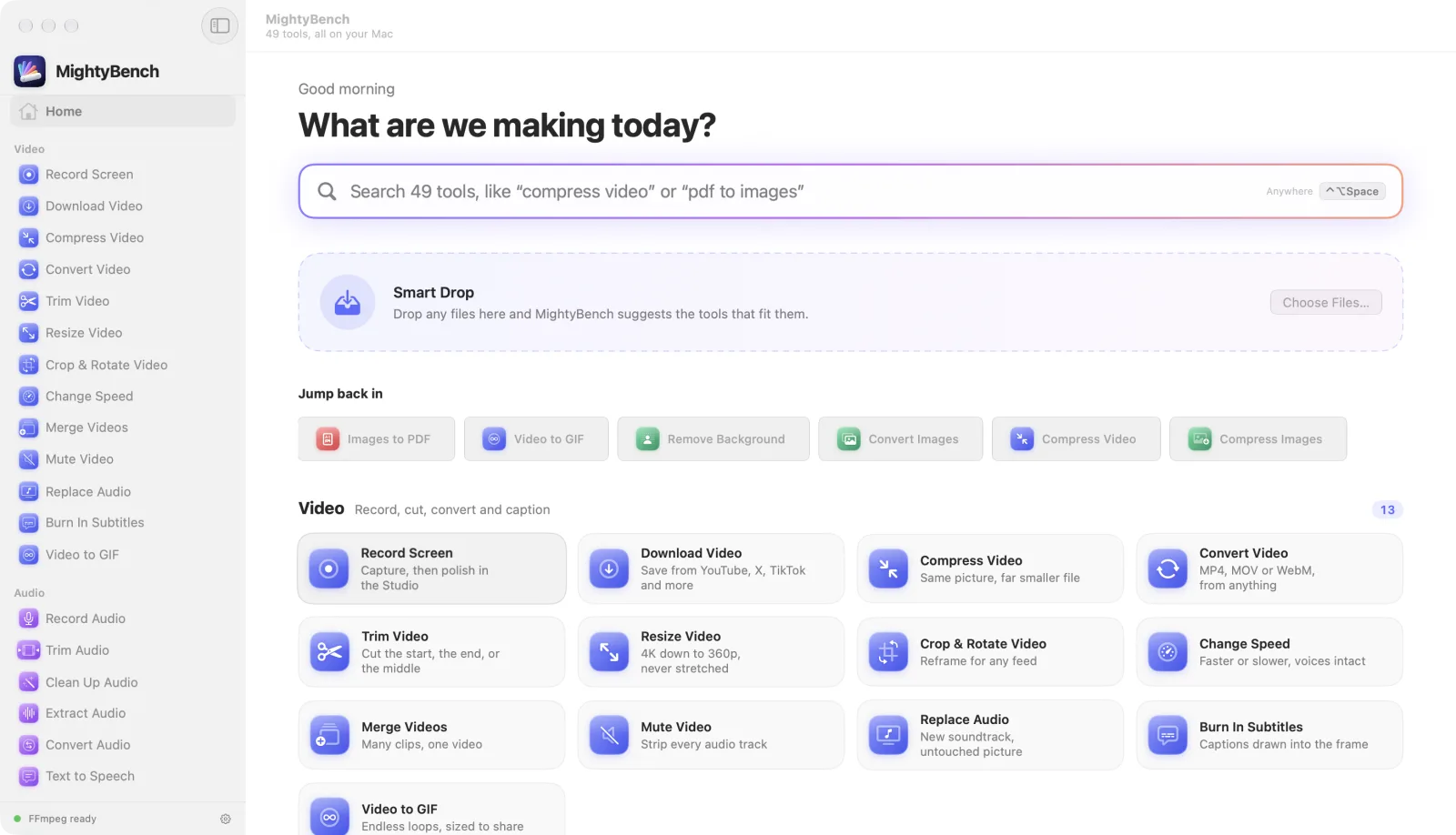
What's inside: 49 tools in six groups
Every tool does one job, and does it properly. Here's the full set:
- Video (13): Record Screen, Download Video, Compress, Convert, Trim, Resize, Crop & Rotate, Change Speed, Merge, Mute, Replace Audio, Burn In Subtitles and Video to GIF.
- Audio (6): Record Audio, Trim, Clean Up, Extract, Convert and Text to Speech.
- Images (9): Convert, Compress, Resize, Rotate, Remove Background, Remove Metadata, Upscale, Add Watermark and QR Codes.
- PDF (12): Merge, Split, Organize, Delete Pages, Extract Pages, Compress, Sign, Add Password, Remove Password, Images to PDF, PDF to Images and Make PDF Searchable.
- Intelligence (6): Transcribe, Dictation, Extract Text, Summarize, Translate and Search Files.
- Files (3): Batch Rename, Find Duplicates and Zip & Unzip.
That list is the point. These are the jobs that come up every week when you make videos, run a small business, teach, write or ship software. None of them deserves its own subscription.
Three ways to find the right tool
With 49 tools, finding the right one has to be faster than opening a browser. MightyBench gives you three ways in.
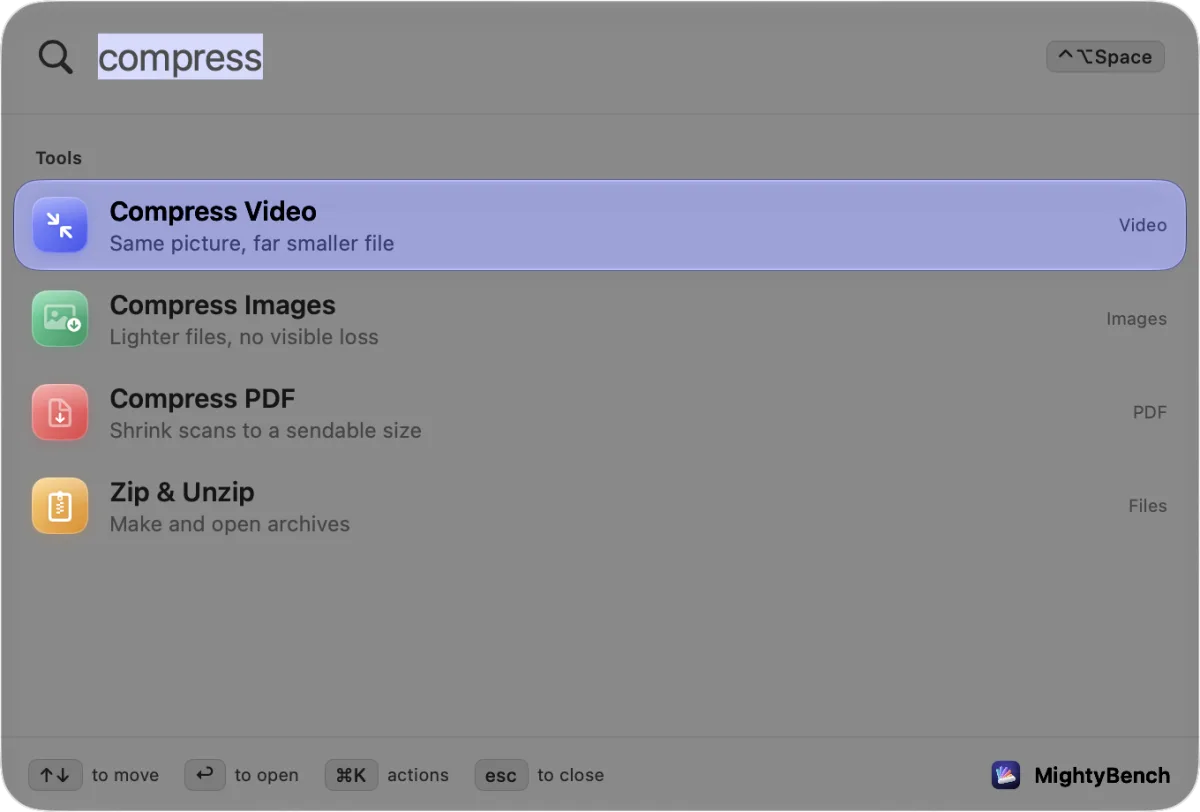
The launcher. Press ⌃⌥Space from any app and a search bar appears, a bit like Spotlight. Type "compress" and you get Compress Video, Compress Images, Compress PDF and Zip & Unzip. Press Return and you're in.
Smart Drop. Drag any files or folders onto the Smart Drop area on the home screen. MightyBench works out what they are (video, audio, image, PDF and so on) and shows only the tools that can handle all of them. Drop a few iPhone videos and it offers Compress, Convert, Trim, Transcribe and Burn In Subtitles first. Click one and it opens with your files already loaded. Files you open with MightyBench from Finder, or drop on its Dock icon, land there too.
Browsing. There's a sidebar with every tool, a menu bar panel for the tools you've pinned and your recent results, and Mosaic View, a board of cards with a tab for each category.
Chain tools together with Send to
Real jobs rarely take one step. You trim a clip, then compress it, then add subtitles. In most setups that means three apps and two trips through Finder.
In MightyBench, every finished job ends with a small banner: Open, Show in Finder and Send to. Send to lists every other tool that can take the files you just made. Pick one and it opens with those files loaded. Trim, then Compress, then Burn In Subtitles is three clicks, and you never touch Finder in between.
Each tool also remembers its files and settings while you work, so you can hop to another tool and back without starting over.
Fifty files is one job
Every tool that can work in batches does. Drop 50 photos into Convert Images, or a folder of recordings into Clean Up Audio, and they run as a single job with one progress bar and a Cancel button that actually stops the work.
I was careful about a few things here, because batch tools are where mistakes get expensive:
- Your originals are never changed. Results go to a new dated folder, such as
Downloads/MightyBench/2026-11-01 Compress Video. You can save next to the originals or pick a folder instead. - Nothing half-finished gets saved. If 3 files out of 50 fail, MightyBench tells you so before saving anything, and you choose whether to keep the 47 that worked or discard the lot.
- No size caps and no queue. Online tools often limit file size or make you wait in line. On your own Mac, the only limit is your Mac.
- Before and after sizes for every job, so you know what you actually saved.
There are two exceptions to "originals are never changed", and both are clearly marked. Batch Rename can rename files in place if you ask it to, with a check for name clashes and a way to roll back. Find Duplicates moves the copies you pick to the Trash, so you can put them back.
Video: compress, convert, download and caption
Compress Video is the tool I use most. Pick a quality, or switch to Target size and type something like 25 MB when a file has to fit under an upload limit. Phone videos and screen recordings often shrink by 60 to 80%. In the example below, a 32-second 1080p clip went from 230.8 MB to 24.4 MB, 89% smaller, and it looks the same.
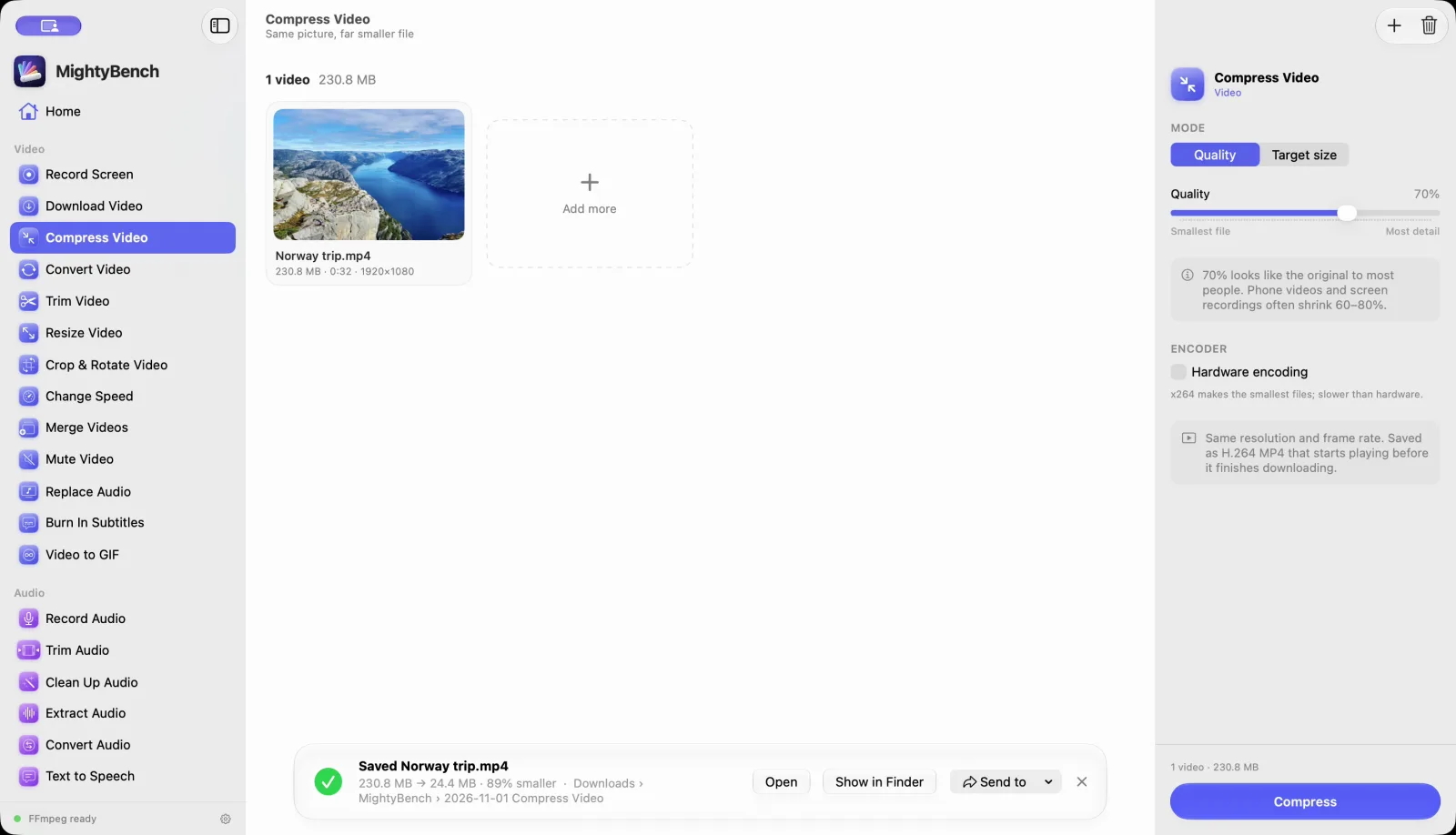
There's a hardware encoding switch, too. Hardware encoding on Apple silicon is very fast. Leave it off and you get the x264 encoder, which is slower but makes the smallest files.
The rest of the video tools cover the jobs that usually send people to a website. Convert opens MKV, AVI and MTS and saves MP4 or MOV (H.264 or HEVC) or WebM. Trim can cut frame-accurately or losslessly. Change Speed keeps voices at their normal pitch. Burn In Subtitles writes captions into the picture, either from your own SRT file or from a transcript made on your Mac.
Download Video saves videos from YouTube, Instagram, X, TikTok, Vimeo, Reddit and many more sites, including whole playlists and subtitle files. Please only download what you own or have permission to save.
Screen recording with a built-in studio
Record Screen records a whole display, one window, an area you drag out, or just your camera. Your microphone and your Mac's sound are saved as separate tracks, and the camera as its own file, so you can fix each one later. A small floating bar lets you pause, restart, throw away or stop, and MightyBench keeps its own windows out of the recording.
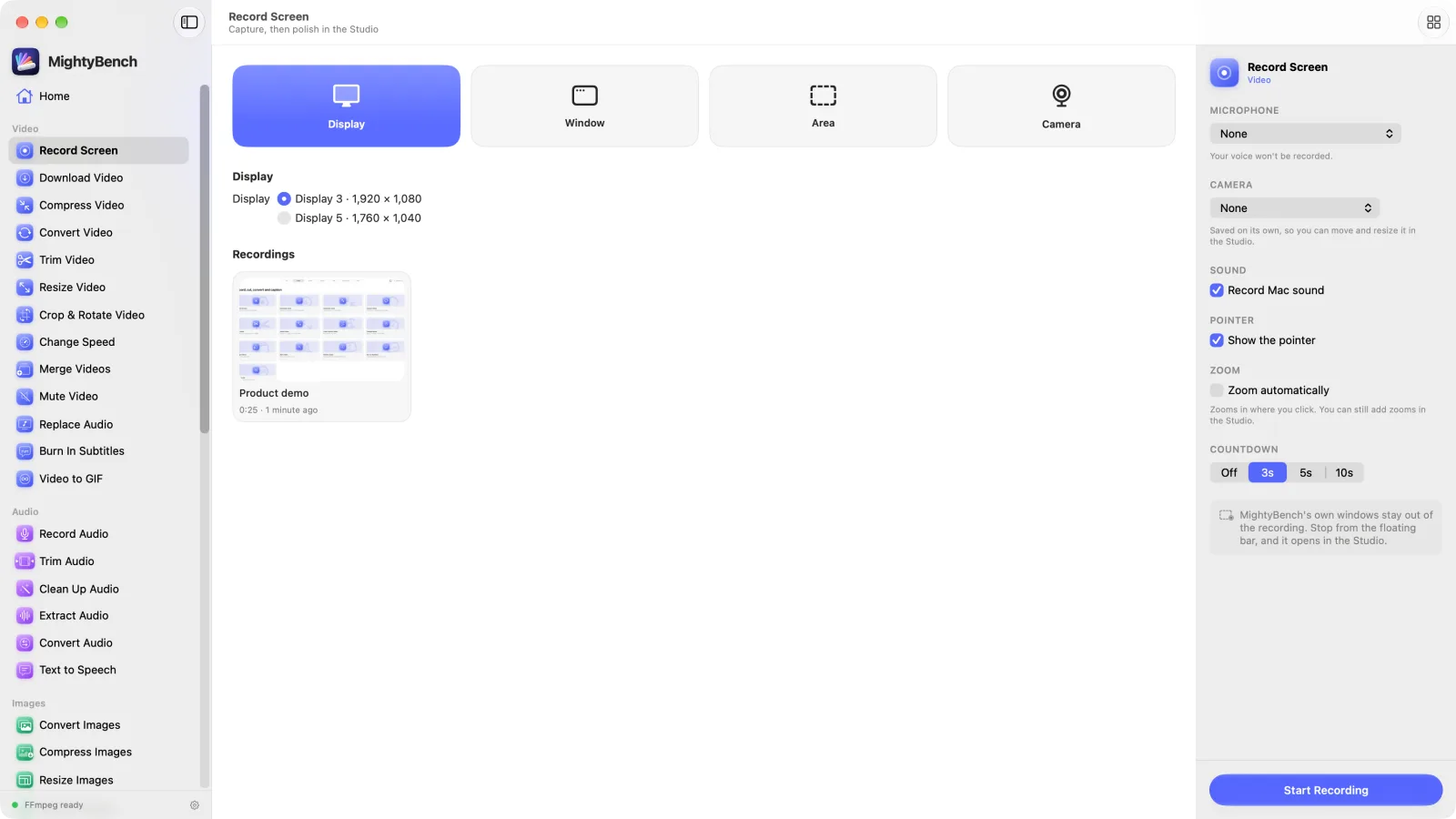
When you stop, the recording opens in the Studio. This is the part that usually means paying for a second app. MightyBench records where you click, so it can zoom in on those moments automatically, and you can move, resize or delete each zoom on its own lane in the timeline.
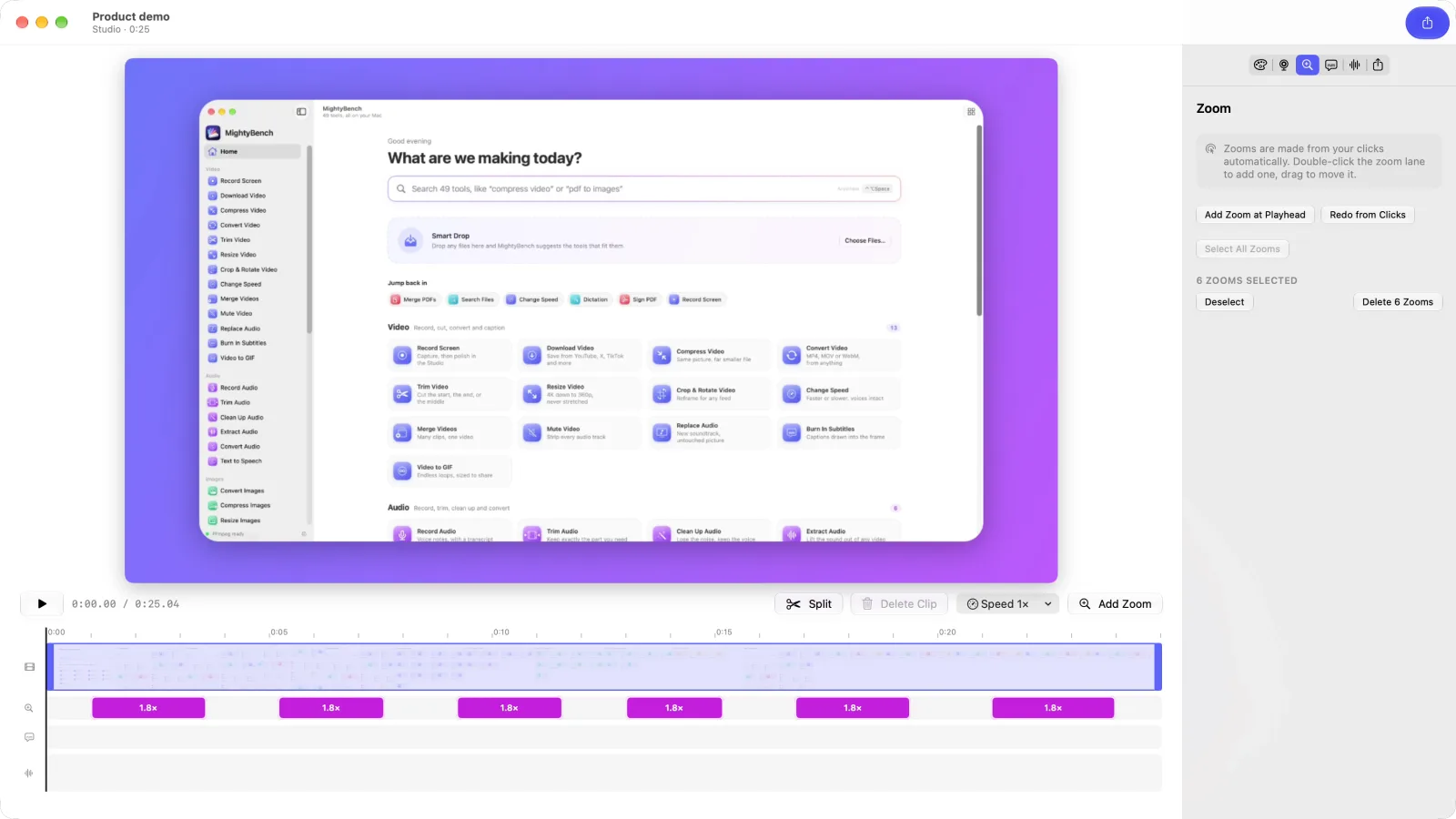
In the Studio you can also:
- Put the recording on a wallpaper, a gradient or a solid colour, with padding, rounded corners and a shadow.
- Switch the canvas to 16:9, 9:16, 1:1 or 4:5 for YouTube, Reels, or a post.
- Add a camera bubble and click ripples.
- Add captions, transcribed on your Mac, and edit them.
- Trim, split, speed up sections, mute parts and add a music track.
- Export MP4, MOV or GIF from 720p up to 4K at 24, 30 or 60 fps, or copy the video straight to the clipboard.
Screen recording and the Studio don't need any extra software. They're built on Apple's own screen capture and video frameworks.
The whole PDF toolbox, offline
PDF jobs are where most people end up uploading files they shouldn't. Contracts, ID scans, bank statements, medical letters. Free PDF websites are convenient, but every one of those files passes through someone else's server, and the free tiers are usually limited to a few tasks or a few megabytes.
MightyBench has 12 PDF tools that all run on your Mac. You can merge PDFs, split one PDF into several, rearrange pages from several PDFs in one grid, delete or extract pages, and compress scans to a size you can send. Compress PDF never makes a file bigger: if it can't shrink a file, it tells you. Sign PDF lets you draw your signature once and reuse it. Add Password locks a PDF with AES encryption. Remove Password unlocks a PDF you own, as long as you know the password. It doesn't crack anything.
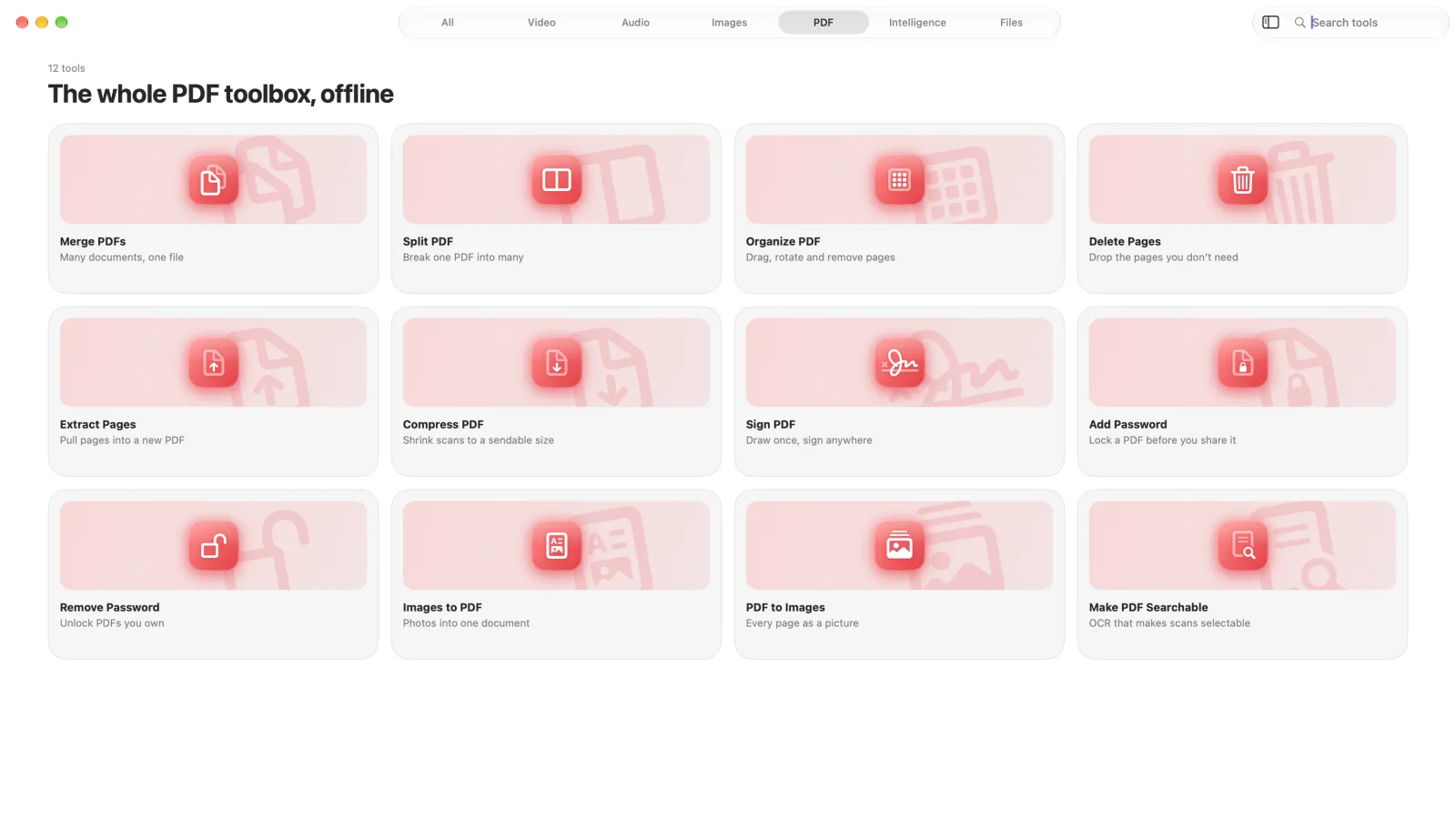
The one I'd point out is Make PDF Searchable. It reads scanned pages with Apple's text recognition and adds an invisible text layer, so the pages look exactly the same but you can search, select and copy the text.
Images, audio and files
Remove Background uses Apple's Vision framework to find people, pets and objects and cut them out. You can keep the background transparent, or make it white or a colour, and crop to the subject.
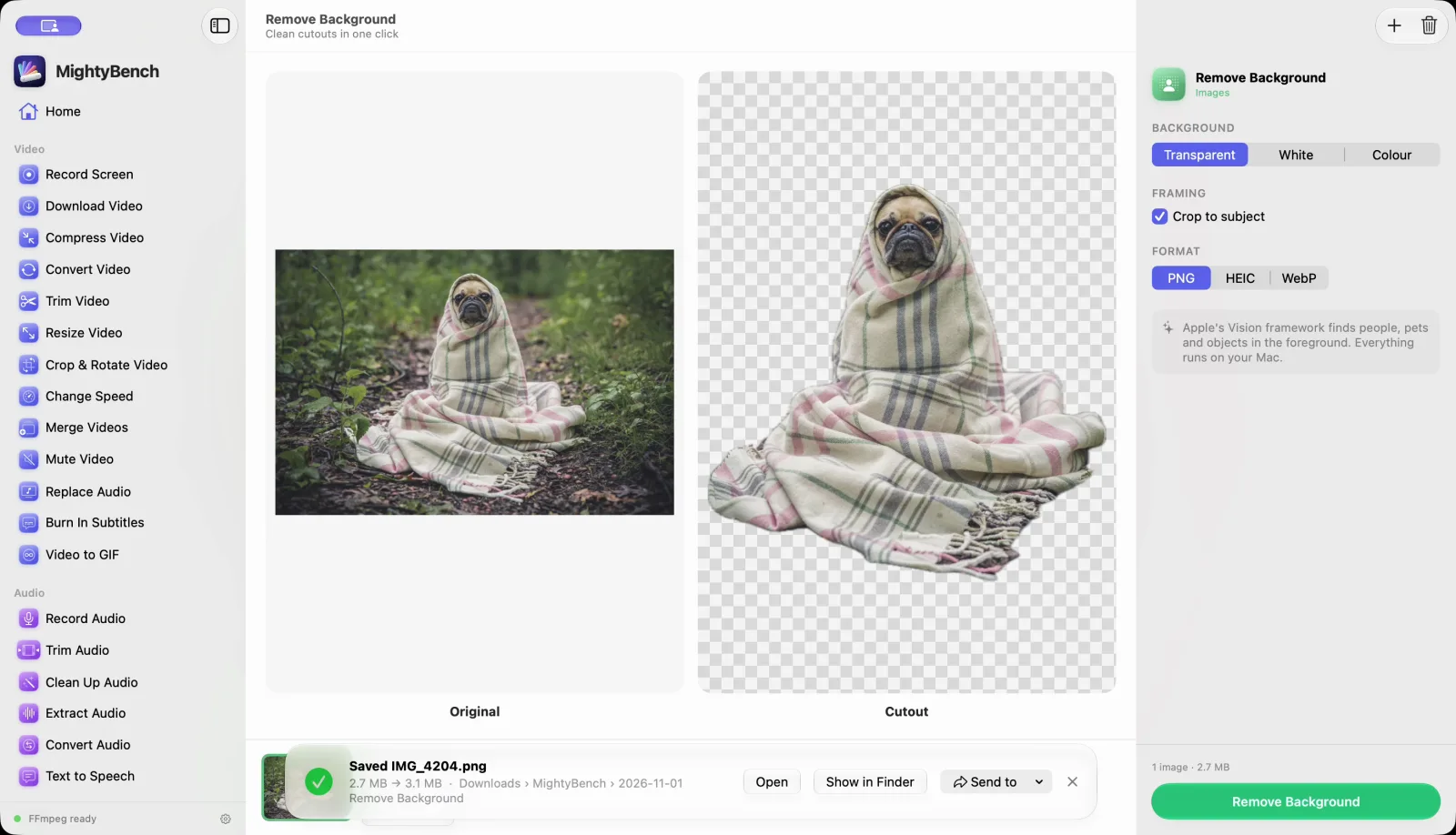
The other image tools cover the daily jobs. Convert saves HEIC, JPEG, PNG, WebP, AVIF or TIFF. Resize goes up to 32,768 pixels. Remove Metadata strips EXIF, GPS and other hidden data before you share a photo. Upscale makes an image 2× or 4× larger. Add Watermark works on photos and PDFs, and QR Codes makes codes for links, text, Wi-Fi or contacts and can read QR codes and barcodes too.
On the audio side, Clean Up Audio does more than its name suggests. It runs a neural noise-reduction model to take out hum, fans and room noise, then evens out the volume so a voice recording sounds like it was made on purpose. Text to Speech reads TXT, Markdown, RTF, Word and PDF files aloud with the macOS voices, including the higher-quality ones.
Then there are the small file jobs: Batch Rename with a live preview, Find Duplicates (exact copies, or similar photos), and Zip & Unzip with password-protected ZIP files.
On-device AI, using what's already in macOS
I didn't want MightyBench's AI features to send your files to a server or make you download a 3 GB model. Recent versions of macOS already include very good speech, vision, language and translation models. MightyBench uses those:
- Transcribe turns audio and video into text, SRT or VTT subtitles using Apple's speech recognition. Each language downloads once from Apple, then works offline.
- Dictation lets you hold a key (fn by default), talk, and let go to type the text into any app. You can add your own words and replacements, and an optional clean-up removes the ums and false starts.
- Extract Text reads text from images and scans.
- Summarize gives you key points, a paragraph or action items from documents, recordings or scans, using Apple's on-device language model. Recordings are transcribed first, and scans are read first.
- Translate translates documents, and SRT files with their timings kept, using Apple's translation models.
- Search Files finds files by what they mean, not just their names. It reads text inside images and keeps itself up to date as files change.
The catch is that some of this depends on Apple. Summarize and Dictation's clean-up need Apple Intelligence, which means an Apple silicon Mac in a language and region Apple supports.
What "private" means here, exactly
"Private" gets used loosely, so here's precisely what MightyBench does and doesn't do.
No tool uploads your files. Every tool processes your files on your Mac. There's no account and no analytics in the app, and your files, file names and usage are never sent anywhere.
The app does go online in a few specific cases, and I'd rather you know them:
- Download Video connects to the site you paste a link from. That's the whole job.
- When you install FFmpeg through the app, it talks to Homebrew. More on that below.
- Apple downloads speech and translation languages the first time you use them.
- Your licence is activated online, then checked at most once a day. If you're offline, it keeps working for 30 days.
- It checks for updates once a day.
MightyBench is sold directly, not through the Mac App Store, and it isn't sandboxed, because it needs to run FFmpeg and yt-dlp. It's signed with a Developer ID and notarized by Apple.
What it costs, compared with the usual stack
MightyBench is a one-time purchase. Until 31 December 2026, the launch price is $19 for one Mac, $29 for three or $39 for five. After that, one Mac is $49.99. Your licence includes every 1.x update. There's no subscription and nothing to buy inside the app, and you can get a full refund within 14 days.
For comparison, here's what some popular apps for the same jobs cost on their own websites in November 2026:
- Adobe Acrobat Standard: $14.99 a month on an annual plan, or $179.88 a year.
- Screen Studio: $9 a month billed yearly, or $29 month to month.
- Wispr Flow (dictation): $12 a month billed yearly.
- CleanShot X: $35 once, with a year of updates.
- Permute (converting): $14.99. Downie (downloading): $19.99.
- Setapp, the app subscription: from $14.99 a month.
Acrobat Standard, Screen Studio and Wispr Flow alone add up to about $430 a year, every year. They're all good apps, and if you use one of them all day it can be worth it. But if you need these jobs a few times a week, paying for three subscriptions is a lot. That's the gap MightyBench is for.
It's not a full replacement for every one of them, though. The next section is the honest list.
What it doesn't do (yet)
- There's no free trial. You need a licence key to download it. The 14-day full refund is there instead.
- It needs macOS 26 Tahoe or later. It's a universal app, but Apple silicon is recommended, and the Apple Intelligence features need it.
- 16 tools need FFmpeg, and Download Video also needs yt-dlp. They aren't bundled. MightyBench installs them in one click with Homebrew, or you can point it at copies you already have. The other 33 tools, including screen recording and every PDF tool, work without them.
- It isn't a PDF editor. You can't edit text, annotate, redact or fill forms, and it doesn't convert PDFs to Word. Sign PDF places an image of your signature. It isn't a certificate-based digital signature.
- No cloud share links for recordings, and no screenshot annotation yet.
- Upscale uses Apple's super-resolution where your Mac supports it. Otherwise it falls back to a high-quality resize with sharpening.
- The interface is in English only for now. Transcribe and Translate work in any language Apple supports.
- Zip & Unzip opens ZIP, TAR and TGZ files, but not RAR or 7z.
How to get started
- Buy a licence on mightybench.com and you'll get a key by email.
- Download the DMG, open it and drag MightyBench to Applications.
- Open it and paste your key. To move it to another Mac later, use Deactivate This Mac in Settings.
- If you want the video and audio tools, click Install when MightyBench asks to set up FFmpeg.
- Press ⌃⌥Space, type what you want to do and drop your files in.
MightyBench's own blog has step-by-step guides for common jobs, such as combining PDFs, compressing video and transcribing audio.
Why I made it
I design and build apps for a living, and most of my working day goes through a Mac. MightyBench is the toolbox I wanted on my own desk: a single place for the small, constant jobs, which treats my files as mine and doesn't send me a bill every month.
If you only need to convert images for the web, my free app Pixtamer does that one job. If you'd like the whole toolbox, MightyBench is here. And if there's a tool you wish it had, tell me.