I built a free Mac app to batch convert images to WebP and AVIF
Almost every website project ends with the same boring job. The design is done, the pages are built, and then a folder of images lands in the project. A 25 MB TIFF for the About page header. Photos straight off an iPhone, in HEIC. A file called Homepage Hero (FINAL).heic. Nothing is the right size, half of it isn't in a format browsers like, and the names are a mess.
Fixing that by hand isn't hard. It's just slow, one file at a time, every single time. So I built a Mac app that does the whole folder at once. It's called Pixtamer, it's free, and the code is on GitHub.
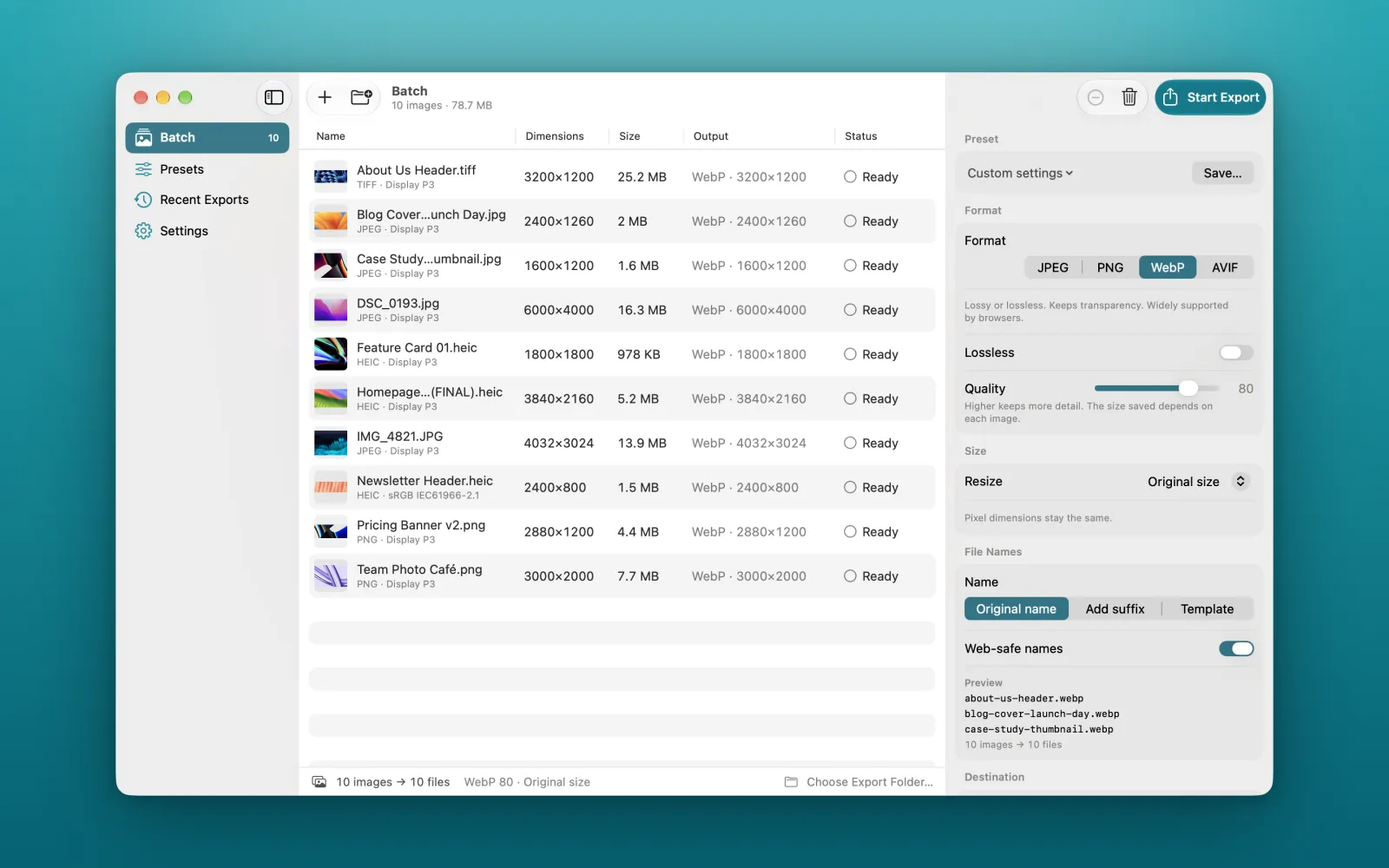
What Pixtamer does
You drop in images or whole folders, pick a few settings on the right and press Start Export. Pixtamer does four things to every file:
- Converts to JPEG, PNG, WebP or AVIF. It reads JPEG, PNG, HEIC, WebP, AVIF, TIFF, GIF, BMP and JPEG XL, so iPhone photos work as they are.
- Compresses with a quality slider, or lossless WebP when you need it.
- Resizes to fit a box, to an exact size, or to several widths at once.
- Renames files into clean, web-safe names, or with a template like
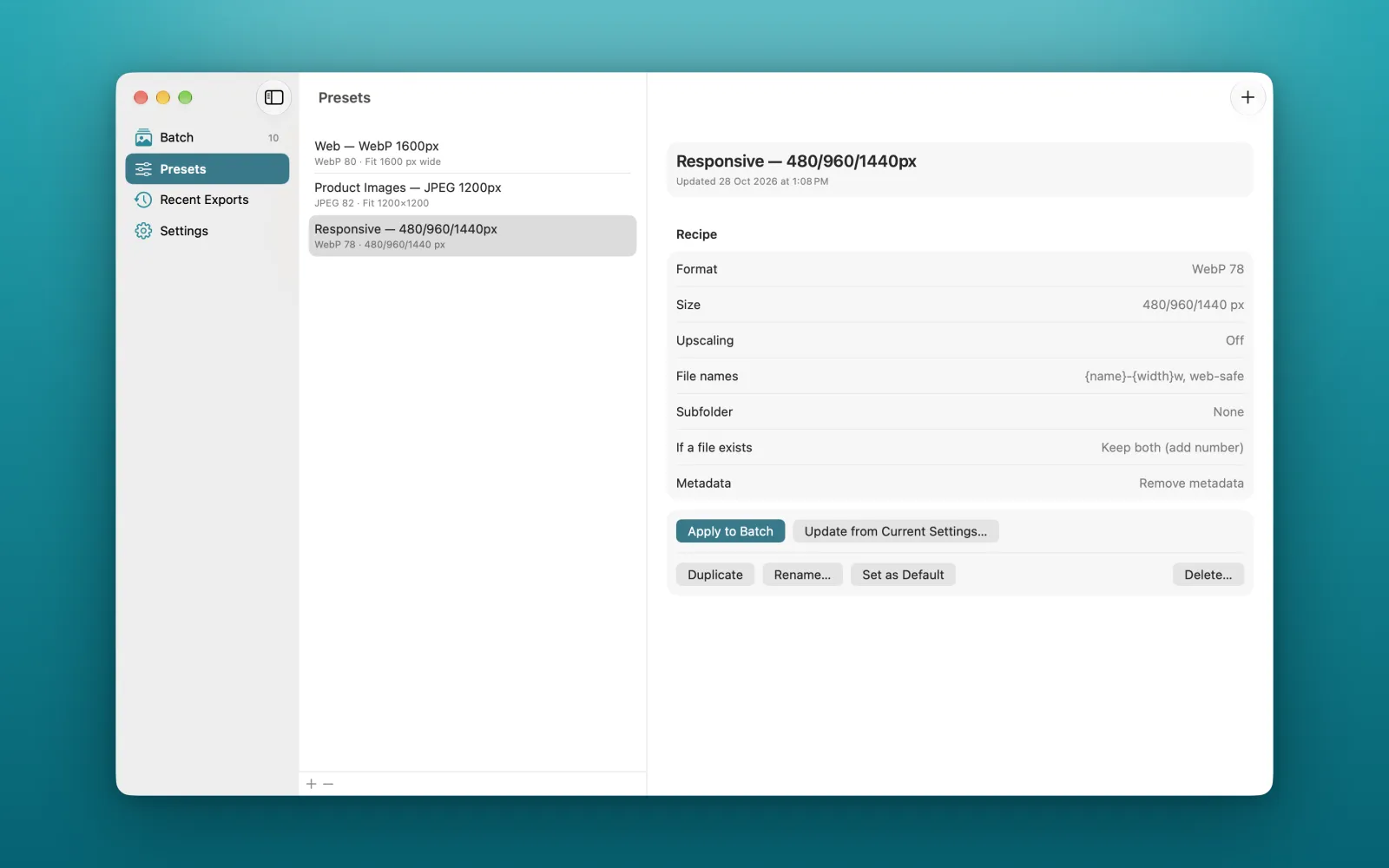
{name}-{width}w.
That's it. No editing, no filters, no AI. It's meant to be the last step before images go into a website, a CMS or an app.
How much smaller do the files get?
Take the batch above: ten images, 78.7 MB, a mix of TIFF, JPEG, HEIC and PNG. I exported them as WebP at quality 80, in three widths each (480, 960 and 1440 pixels). Pixtamer wrote 30 files that add up to 927 KB.
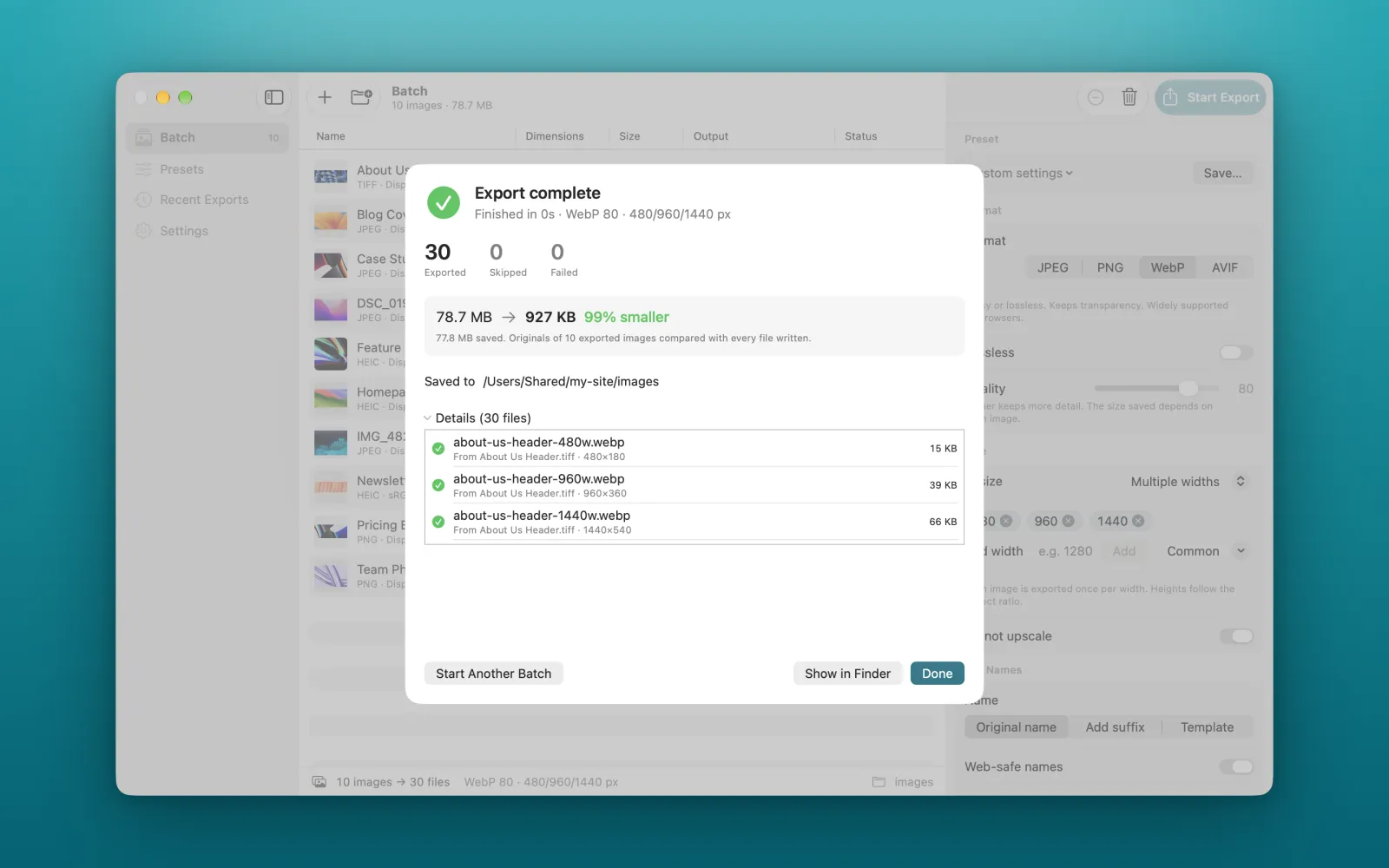
To be fair, most of that saving comes from resizing. A 6000-pixel camera photo has no business being on a web page at full size. But the format matters too. One 13.9 MB iPhone photo became a 248 KB WebP at 1440 pixels wide, 98% smaller, and at normal viewing size it's hard to tell the two apart.
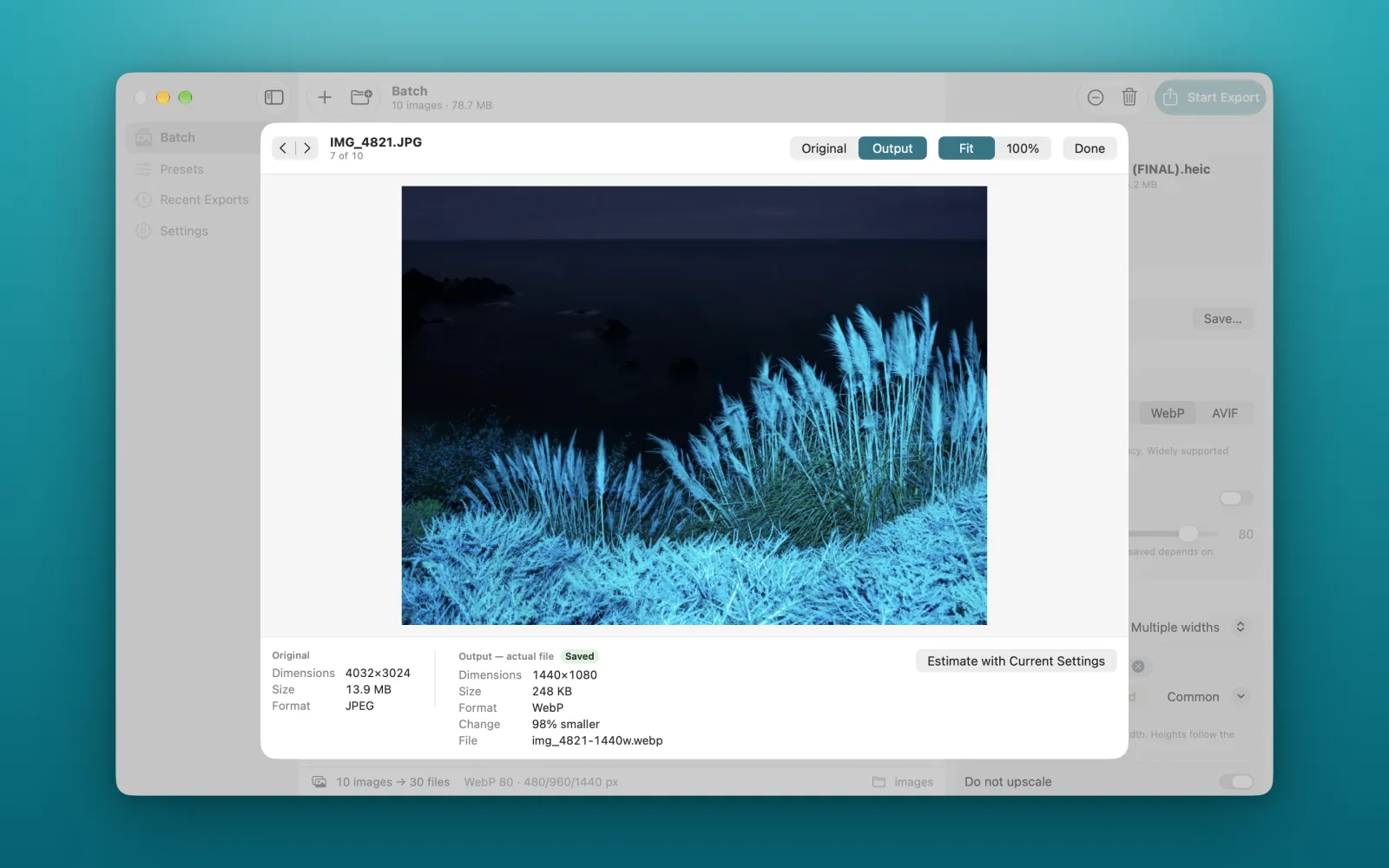
I was strict about one thing: the sizes Pixtamer shows come from the files it actually wrote, not estimates. If a file ends up bigger, which can happen when you save a photo as PNG, it tells you instead of hiding it.
Responsive images without the busywork
If you've ever written a srcset, you know you need the same image at a few widths. Doing that by hand means exporting each image three or four times and getting every file name right.
In Pixtamer you choose Multiple widths, add the sizes you want, and each image becomes one file per width, named like about-us-header-480w.webp. Small images are never upscaled, so a 900-pixel image won't be stretched to 1440.
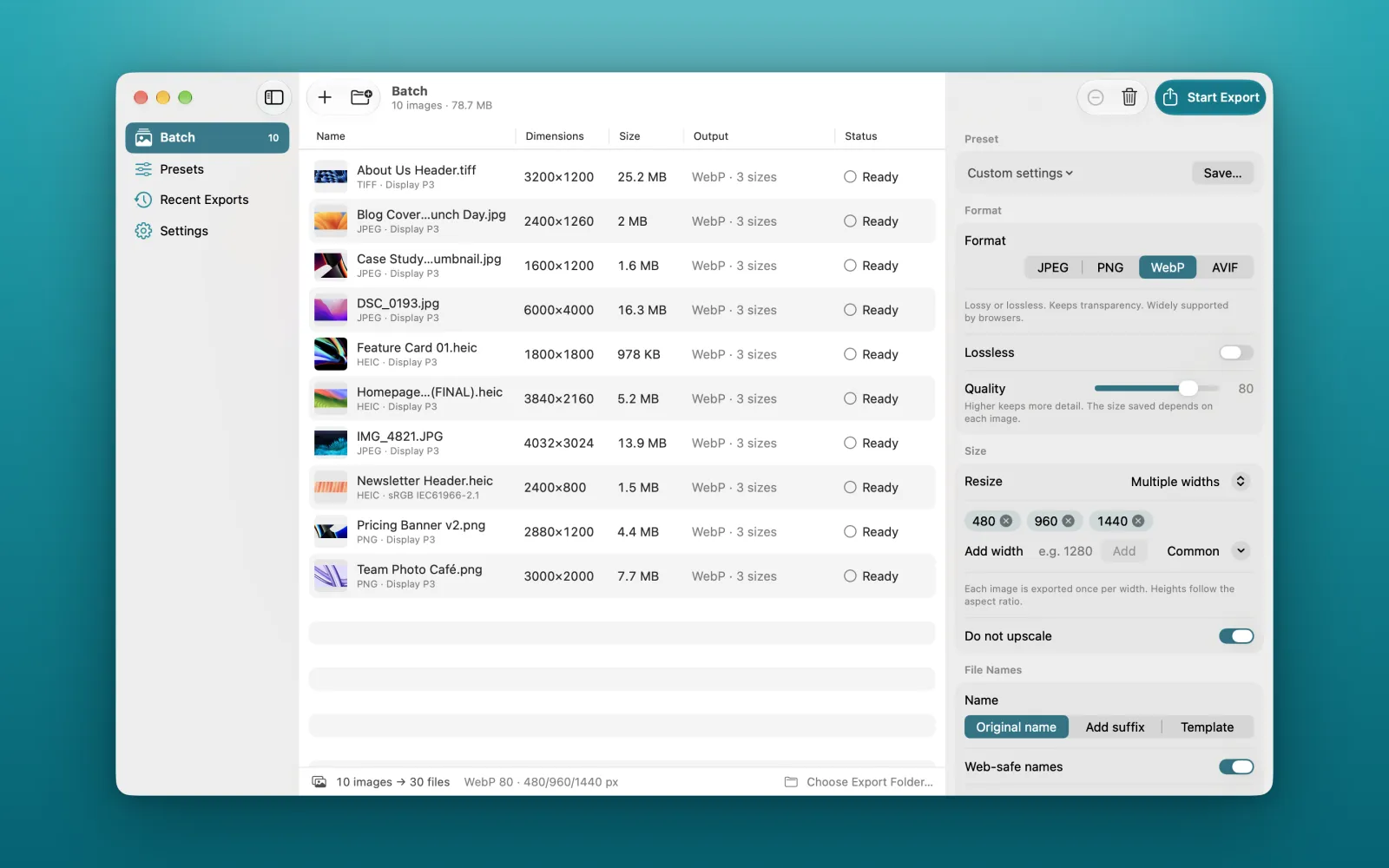
File names that won't break anything
Spaces, brackets and capital letters in file names cause small, annoying bugs on the web. With web-safe names turned on, Homepage Hero (FINAL).heic comes out as homepage-hero-final.webp. You see a preview of the new names before you export, so nothing comes as a surprise.
Presets for the jobs you repeat
Most of us export images the same few ways. I keep one recipe for blog images, one for product photos and one for responsive hero images. Save your settings once as a preset, and next time it's a single click on Apply to Batch.
Your images never leave your Mac
A lot of image compressors are websites. You upload your files, wait, and download them again. That's fine for a stock photo, less fine for unreleased product shots or client work.
Pixtamer runs entirely on your Mac. It's sandboxed with no network access at all, so it couldn't upload your images even if it wanted to. There's no account and no analytics. It never changes your originals either, and if a file with the same name already exists in the export folder, it keeps both rather than overwriting, unless you tell it otherwise.
By default it also removes metadata, including GPS location, which is usually what you want for images going on a public website. You can keep it with one setting if you need it.
How to batch convert images to WebP on a Mac
- Download Pixtamer from the latest release, open the DMG and drag it to Applications.
- Drag your images, or a whole folder, onto the window.
- Under Format, choose WebP and set the quality. Somewhere between 75 and 82 works well for photos.
- Under Size, pick Fit within, or Multiple widths for responsive images.
- Turn on Web-safe names, choose an export folder and click Start Export.
If you use Homebrew, you can install it from the terminal instead:
brew tap heysidhant/tap
brew trust heysidhant/tap
brew install --cask pixtamer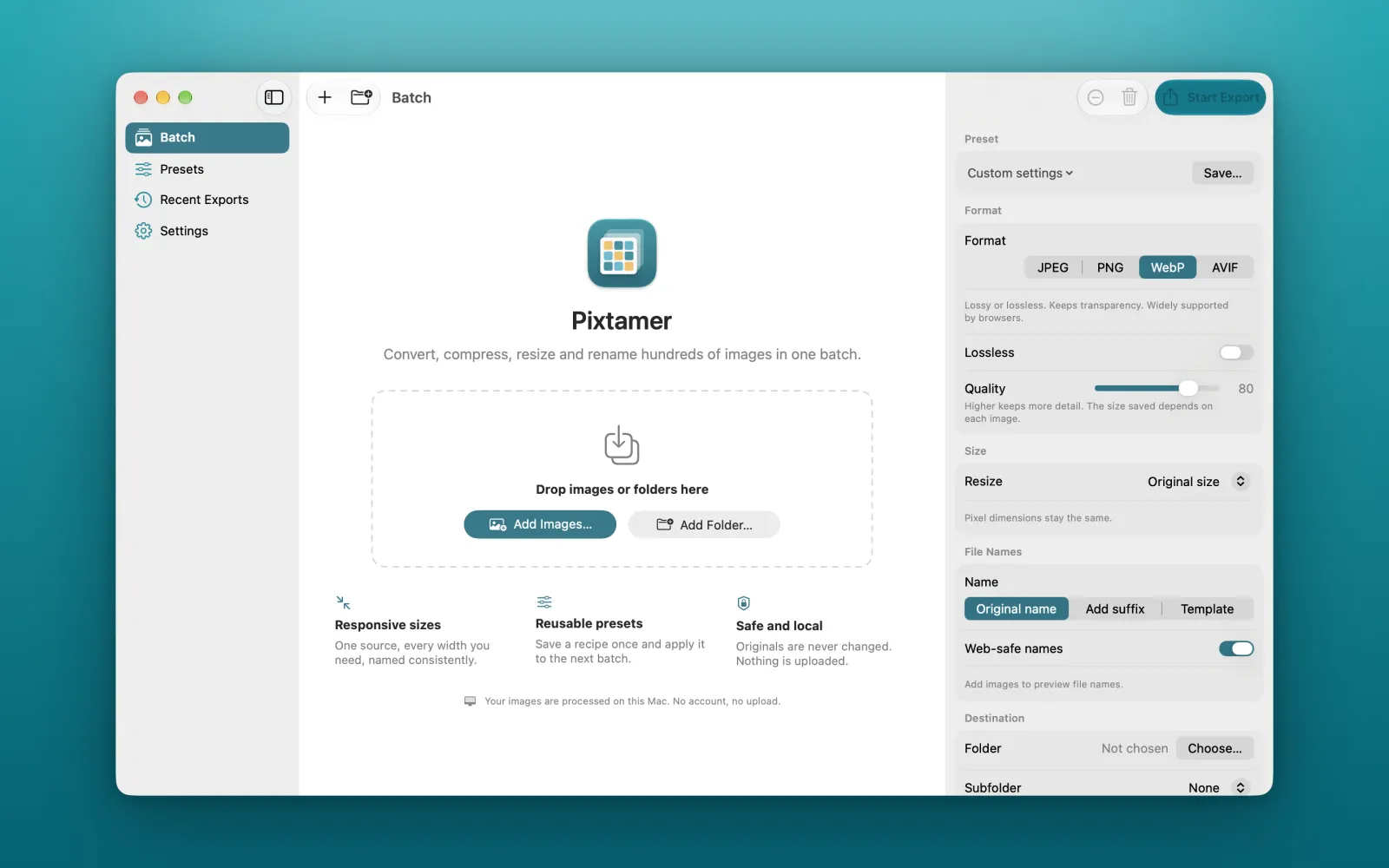
How it compares to Squoosh, TinyPNG and ImageOptim
All three are good at what they do. Squoosh is great for fine-tuning a single image in the browser. TinyPNG is quick, but your files go to their servers and the free version limits how many you can do at once. ImageOptim is a lovely Mac app for making existing files smaller, but it's built around optimising files in the format they're already in.
Pixtamer fills the gap between them: a whole folder converted, resized and renamed in one pass, offline and free.
What it doesn't do yet
Pixtamer is at version 0.1, so here are the honest limits:
- WebP files don't keep metadata or colour profiles. Images are converted to sRGB first, which is what browsers expect anyway.
- AVIF export depends on your version of macOS. The option only shows up if your Mac's encoder passes a quick check when the app starts.
- Animated GIFs export their first frame only, and RAW and PSD files aren't supported.
- PNG output is lossless only, so photos saved as PNG are often bigger. Use WebP or JPEG for photos.
If you run into a bug, open an issue on GitHub. In the app, Help → Pixtamer Help → Copy Diagnostics gives you a report to paste in. It doesn't include your images or full file paths.
Why it's free
I make paid apps too, like MightyBench. This one solves a small problem I kept running into, and giving it away felt right. It's MIT licensed, so you can read the code, change it or build on it. If it saves you an afternoon of exporting, it's done its job.
Pixtamer needs macOS 14 Sonoma or later and runs natively on Apple silicon and Intel Macs. Get Pixtamer here.